
Integrations overview
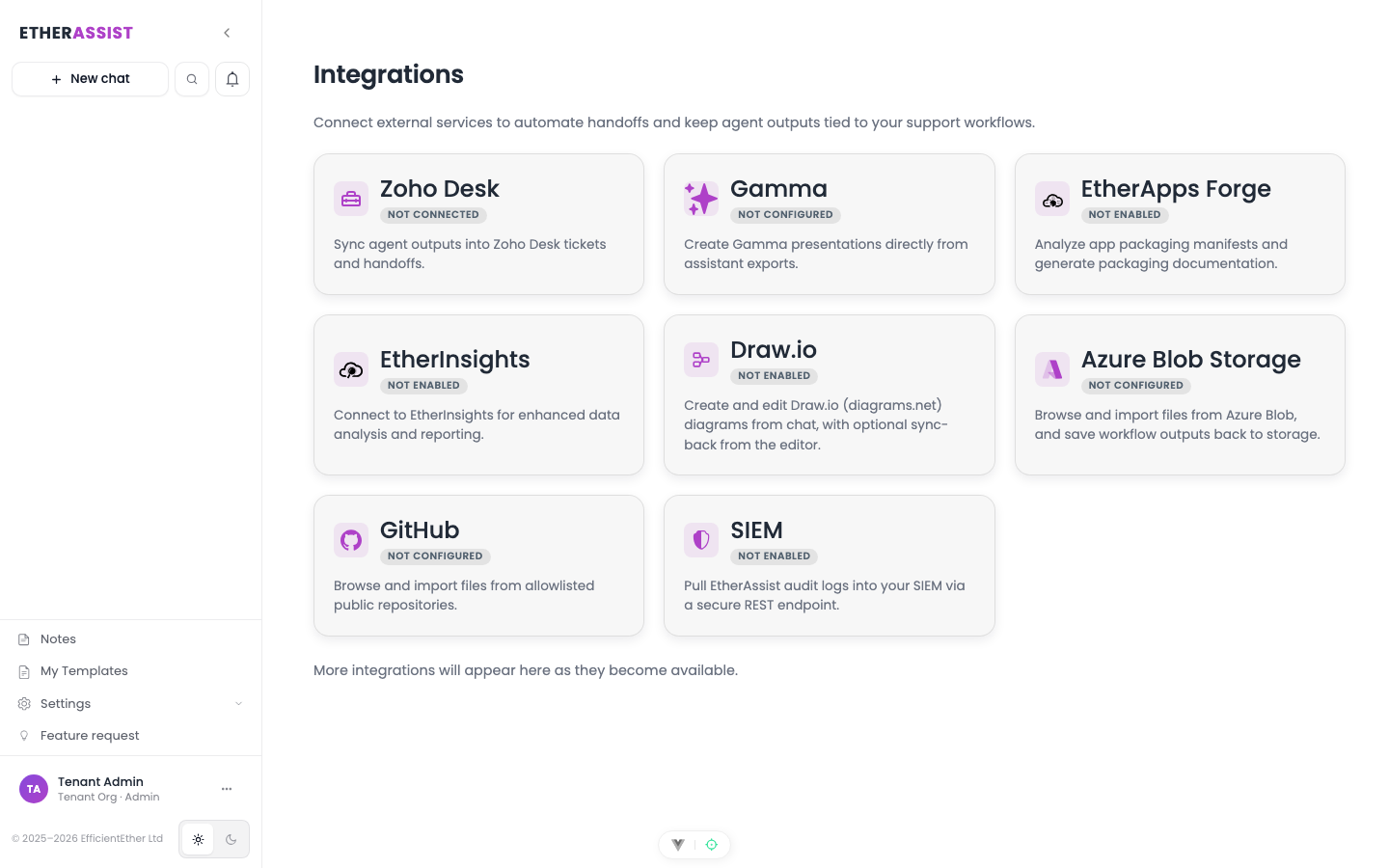
Integrations connect EtherAssist to external systems for document context, support workflows, diagrams, automation, and programmatic access. Services that support the Model Context Protocol (MCP), including EtherInsights, can also give the assistant tools to use while it answers.
Before you begin
- Integration availability depends on your plan, tenant policy, and administrator configuration.
- Admin permissions are usually required to configure tenant-level integrations.
- External systems may require tenant-owned credentials, OAuth consent, or allowlisting.
- Do not paste secrets into documentation, prompts, or screenshots.
Step 1: Choose an integration path
- Identify the source or destination system.
- Confirm the integration is enabled for your tenant.
- Confirm whether setup requires admin permissions.
- Configure the connection in the relevant integration page.
- Test with non-sensitive sample content.
- Document the workflow for users who will run it.
Expected result: the integration is available in the surface where users need it, such as chat attachments, Agent tasks, workflow actions, API clients, or PowerShell scripts.
Available integration areas
| Integration | Use it for | Documentation |
|---|---|---|
| REST API | Send questions, generate content, and integrate EtherAssist into custom tools. | API |
| PowerShell module | Use EtherAssist from scripts and command-line workflows. | PowerShell module |
| Microsoft Teams | Use EtherAssist from Teams and share conversation context. | Teams integration |
| Browser extension | Use EtherAssist from Chrome, Edge, and Firefox. | Browser extension |
| GitHub | Import files from approved repositories for chat and Agent Mode context. | GitHub |
| Azure Blob Storage | Browse, import, and use tenant-scoped blob content. | Azure Blob Storage |
| Zoho Desk | Review tickets, draft or post private notes, and update knowledge base content. | Zoho Desk |
| Draw.io | Create and revise diagrams from chat output. | Draw.io |
| EtherInsights | Let the assistant look up EtherInsights reporting data in chat, and add EtherInsights results to Agent Mode workflows. | EtherInsights |
| MCP connectors | Let the assistant use tools from other services that support MCP. Tools that change data need the user's approval each time. | MCP connectors |
| Gamma | Generate presentation or document outputs from workflow content when configured. | Gamma |
| EtherApps Forge | Use app-packaging review, documentation, or troubleshooting context where enabled. | EtherApps Forge |
| SIEM | Connect supported security event workflows where enabled. | SIEM |
Where integrations appear
| Surface | How integrations are used |
|---|---|
| Chat | Attach imported files, generate diagrams, use EtherInsights data and MCP connector tools, or use other configured capabilities when enabled. |
| Agent tasks | Select configured integrations for background reviews, ticket work, and document context. |
| Workflows | Add integration or export actions as workflow steps. |
| Schedules | Run supported agent, workflow, and support operations on a recurring schedule. |
| API and PowerShell | Call EtherAssist from external automation. |
Common integration tasks
| Task | Steps |
|---|---|
| Use repository content in an answer | Configure GitHub, select approved files, attach them to chat or Agent Mode, then ask for a scoped review. |
| Use blob content as context | Configure Azure Blob Storage, browse tenant-approved content, import or attach the file, then ask for the required output. |
| Draft a support note | Configure Zoho Desk, open the ticket context, run an Agent task, then review before posting. |
| Generate an editable diagram | Ask for a diagram in chat, review the rendered output, then use the diagram integration where available. |
| Call EtherAssist from automation | Use the REST API or PowerShell module with tenant-approved credentials and scoped prompts. |
| Let the assistant use another service | Add an MCP connector, test it, choose which tools the assistant can use, then ask a question in chat. |
Public documentation rules
When documenting or sharing integration setup, keep screenshots and examples free of:
- API keys, tokens, secrets, and client secrets;
- tenant IDs and internal endpoint details;
- customer names, ticket IDs, email addresses, or repository names unless explicitly approved;
- development or environment-specific URLs.
Tips
- Keep names, prompts, and configuration values specific to the task you are performing.
- Check role, subscription, region, and tenant policy when a feature is not visible.
Next steps
- Use integrations in Agent Mode
- API
- GitHub
- Azure Blob Storage
- Zoho Desk
- EtherInsights integration
- MCP connectors
Troubleshooting
| Issue | What to check |
|---|---|
| Integration is not visible | Confirm the integration is enabled for your tenant, plan, and role. |
| Connection or save fails | Check admin permissions, credentials, OAuth consent, callback URLs, and tenant policy. |
| Test content does not appear | Reconnect the integration and test with a small non-sensitive sample item. |